Your name in lights! (Part 3)
Last time, we got to grips with MBasic and managed to emit some weird runes onto our LED display.
We’re going to be building on that foundation here, so if you skipped Part One or Part Two or are still a little shaky on the fundamentals you might want to go back and read them again.
To move forward, I’m going to assume that you’ve got SLIDE.COM on the B: drive of your ‘Beast, and that you have the corresponding PC utility installed somewhere in your PATH on your development PC. Refer to the SLIDE README if you need more help with that.
Set up
First things first: clone the Beast User repository on to your development PC.
We’re going to start in the scrolltext/basic/fonts folder.
Background info
This time, we’ll see if we can adopt that classic time-honoured writing system: the Latin alphabet!
All of the standard characters on the ‘Beast can be represented by an ASCII code: for example the letter A is character number 65 (0x41). It would be convenient to use these values when we’re trying to write every-day text to our display, and only resort to codewords when we want a Space Invader, or something.
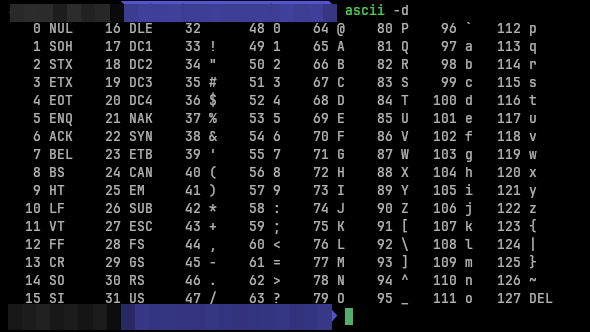
Incidentally, the ASCII standard is a supremely elegant bit of design: read this post if you want to know more!
You might guess from the Font Editor I’ve shown you previously that this involves creating a “Font” which is simply a big table of codewords for every letter, digit or punctuation mark we wish to use, systematically organised in such a way that we can convert from ASCII codes to LED code-words.
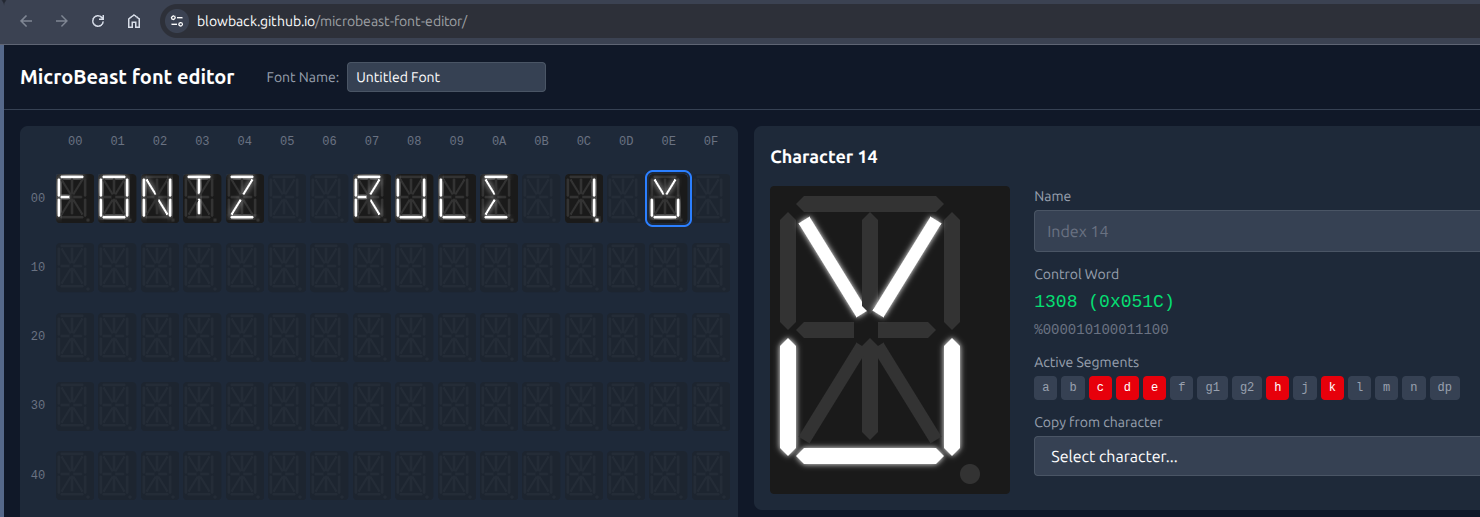
You might also be thinking “Hold on, the ‘Beast already displays characters perfectly well, surely someone has already done this work?” - and you’d be right. The ‘Beast’s designers have already provided a “font” that covers the 94 most exciting characters in the ASCII standard. (ASCII only defines 128 characters in total, and some of those are special control characters that can’t be printed to the screen anyway).
You can see the MicroBeast’s font table on github.
Unfortunately, the BIOS doesn’t provide a convenient way to access this font table from code running on the `Beast. We could figure out its address in the particular firmware we’re using, but such an approach is brittle because there are no guarantees that the next version of the firmware will have the font table at exactly the same address, and our code would break.
The alternative is to define our own font table. Rather than mess about defining 94 characters in the Font Editor, we’re just going to copy the info from the MicroBeast font table into our own code.
Here’s the code we’ll be running this time:
1
2
3
4
5
6
7
8
9
10
11
12
13
14
15
16
17
18
19
20
21
22
23
24
25
26
27
28
29
30
31
32
33
34
35
36
37
38
39
40
41
42
43
44
45
46
47
48
49
50
51
52
53
54
55
56
57
58
59
60
61

10 REM === MicroBeast LED Demo - Step 2: Font Rendering ===
20 REM Display "HELLO" on the last 5 LED positions (columns 19-23)
30 REM using font bitmask data for the 14-segment displays.
40 REM
50 REM Each character has a 16-bit bitmask:
60 REM   Low byte  = outer segments (a,b,c,d,e,f,g1,g2)
70 REM   High byte = inner/diagonal segments (h,j,k,l,m,n)
80 REM
90 REM Font table is indexed from ASCII 32 (space) onwards.
100 REM Lookup: index = ASC(char) - 32, bitmask = FT%(index)
110 REM
120 REM --- Set up machine code stub at 60000 (&HEA60) ---
130 REM CALL S%(BM%, CO%) passes HL=&bitmask, DE=&column
140 S% = &HEA60
150 FOR I% = 0 TO 10: READ V%: POKE S%+I%, V%: NEXT I%
190 REM
200 REM --- Read font data into array ---
210 REM 95 entries: ASCII 32 (space) through ASCII 126 (~)
220 DIM FT%(94)
230 FOR I% = 0 TO 94
240   READ FT%(I%)
250 NEXT I%
260 REM
270 REM --- Display "HELLO" on columns 19-23 ---
280 H$ = "HELLO"
290 FOR I% = 1 TO 5
300   C$ = MID$(H$, I%, 1)
310   IX% = ASC(C$) - 32
320   BM% = FT%(IX%)
330   CO% = 18 + I%
340   CALL S%(BM%, CO%)
350 NEXT I%
400 REM
410 PRINT "Displayed HELLO on columns 19-23"
420 END
430 REM
440 REM --- MBB_WRITE_LED stub (11 bytes) ---
450 DATA &HEB, &H7E, &HEB, &H5E, &H23, &H56, &HEB, &HCD, &HD6, &HFD, &HC9
460 REM
470 REM --- Font DATA (ASCII 32-126, 95 entries) ---
480 REM Each value is a 16-bit bitmask for the 14-segment display
490 REM
500 DATA &H0000, &H4900, &H0202, &H12CE, &H12ED, &H2DE4
510 DATA &H0B59, &H0200, &H0C00, &H2100, &H3FC0, &H12C0
520 DATA &H2000, &H00C0, &H4000, &H2400
530 DATA &H243F, &H0406, &H00DB, &H008F, &H00E6, &H0869
540 DATA &H00FD, &H1401, &H00FF, &H00EF, &H0040, &H2200
550 DATA &H0C40, &H00C8, &H2180, &H5083
560 DATA &H02BB, &H00F7, &H128F, &H0039, &H120F, &H0079
570 DATA &H0071, &H00BD, &H00F6, &H1209, &H001E, &H0C70
580 DATA &H0038, &H0536, &H0936, &H003F
590 DATA &H00F3, &H083F, &H08F3, &H00ED, &H1201, &H003E
600 DATA &H2430, &H2836, &H2D00, &H00EE, &H2409
610 DATA &H0039, &H0900, &H000F, &H2800, &H0008
620 DATA &H0100, &H208C, &H0878, &H00D8, &H208E, &H2058
630 DATA &H14C0, &H048E, &H1070, &H1000, &H2210
640 DATA &H1E00, &H1200, &H10D4, &H1050, &H00DC
650 DATA &H0170, &H0486, &H0050, &H0888, &H0078
660 DATA &H001C, &H2010, &H2814, &H2D00, &H028E
670 DATA &H2048, &H2149, &H1200, &H0C89, &H24C0
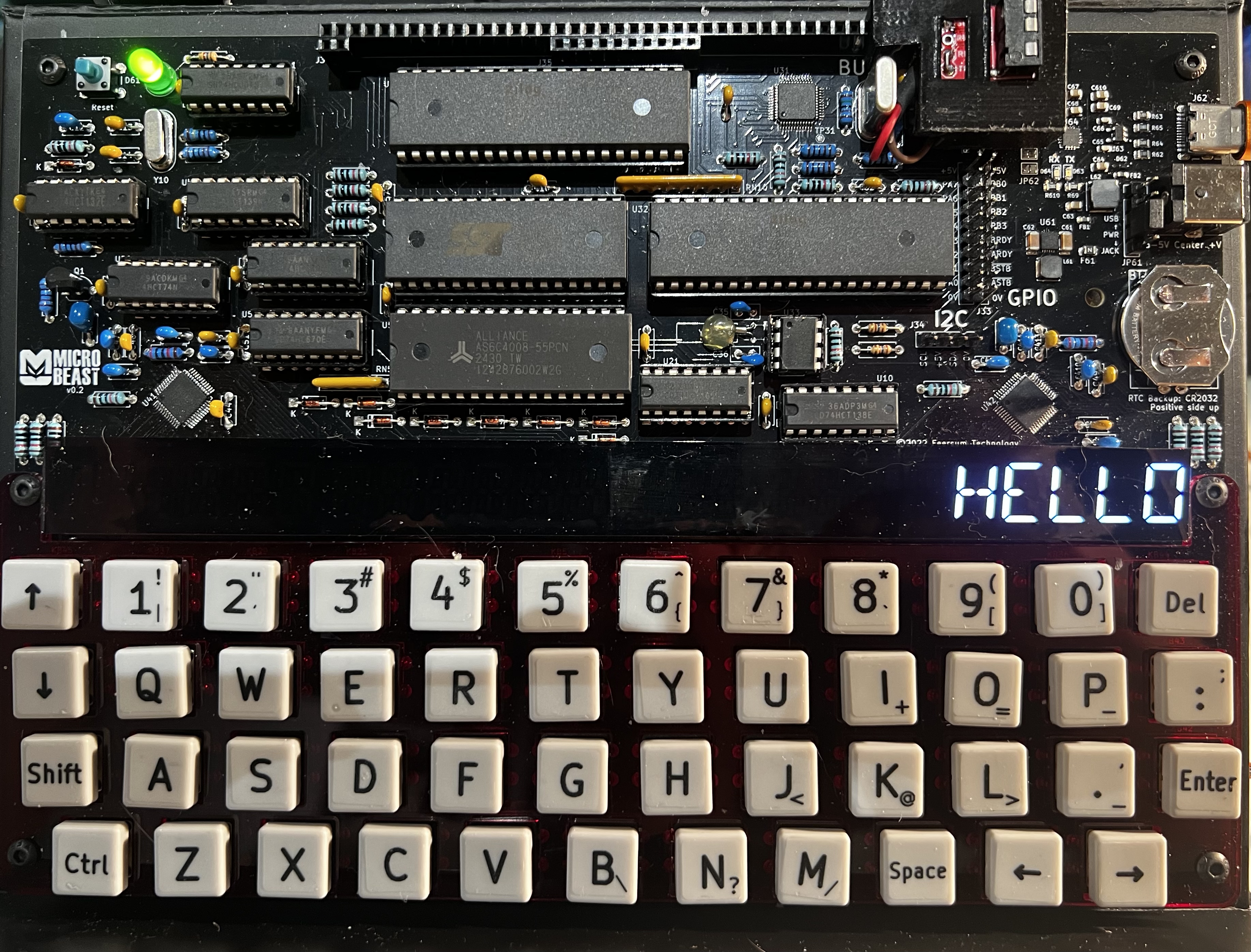
The aim this time around is to write the word “HELLO” in the last 5 characters of the display. We won’t be writing code-words either this time: we’ll use ASCII characters.
You can see in line 280:
1
280 H$ = "HELLO"
The $ suffix means “this variable is a string”, and a “string” is a sequence of ASCII characters. It’s more convenient than writing out 72, 69, 76, 76, 79, but is otherwise exactly equivalent (bar some sneaky extra information that is stored to remember how long the string is).
In line 220, we have this odd looking line:
1
220 DIM FT%(94)
This means that we’re “DIMensioning” (allocating) an “array” (list or table) of 94 integers (because of the %), and we want to call this table FT% for “Font Table”.
In lines 200-250 you can see where we’re setting up values to go in to that table. We loop around 94 times and for each character we’re performing:
1
240  READ FT%(I%)
so as I% goes from 0 to 94 we’ll first read a value into FT%(0) (the first slot) then the next value into FT%(1) and so on. That READ statement gets its data from the DATA statements starting at line 500. It doesn’t start with the DATA statements at line 450, because those bits of data were already used up by the READ in line 150.
The font data exactly matches the MicroBeast firmware file I showed you earlier - the hexadecimal numbers are just formatted in a slightly different way.
Running the code
We can speed through this now, as you’re an old hand at running BASIC programs on the ‘Beast. Try this:
- Boot your ‘Beast
- SLIDE the
FONTS.BASfile from the repo across to your ‘Beast’s B drive - “log in” to the A drive with
A: - start MBasic with
MBASIC - type
LOAD "FONTS" - inspect it with
LIST - run it with
RUN
All being well, you should see this:
Things you can try
- Try displaying a different 5 character string.
- What happens if you try to display a longer string?
- How can you adapt the code to display a longer string? What limitations do you encounter?
End of Part Three
That’s it for Part Three - nice and quick this time! Next time, we’ll let you type in any string you like (within reason) and have that displayed on the LEDs!